



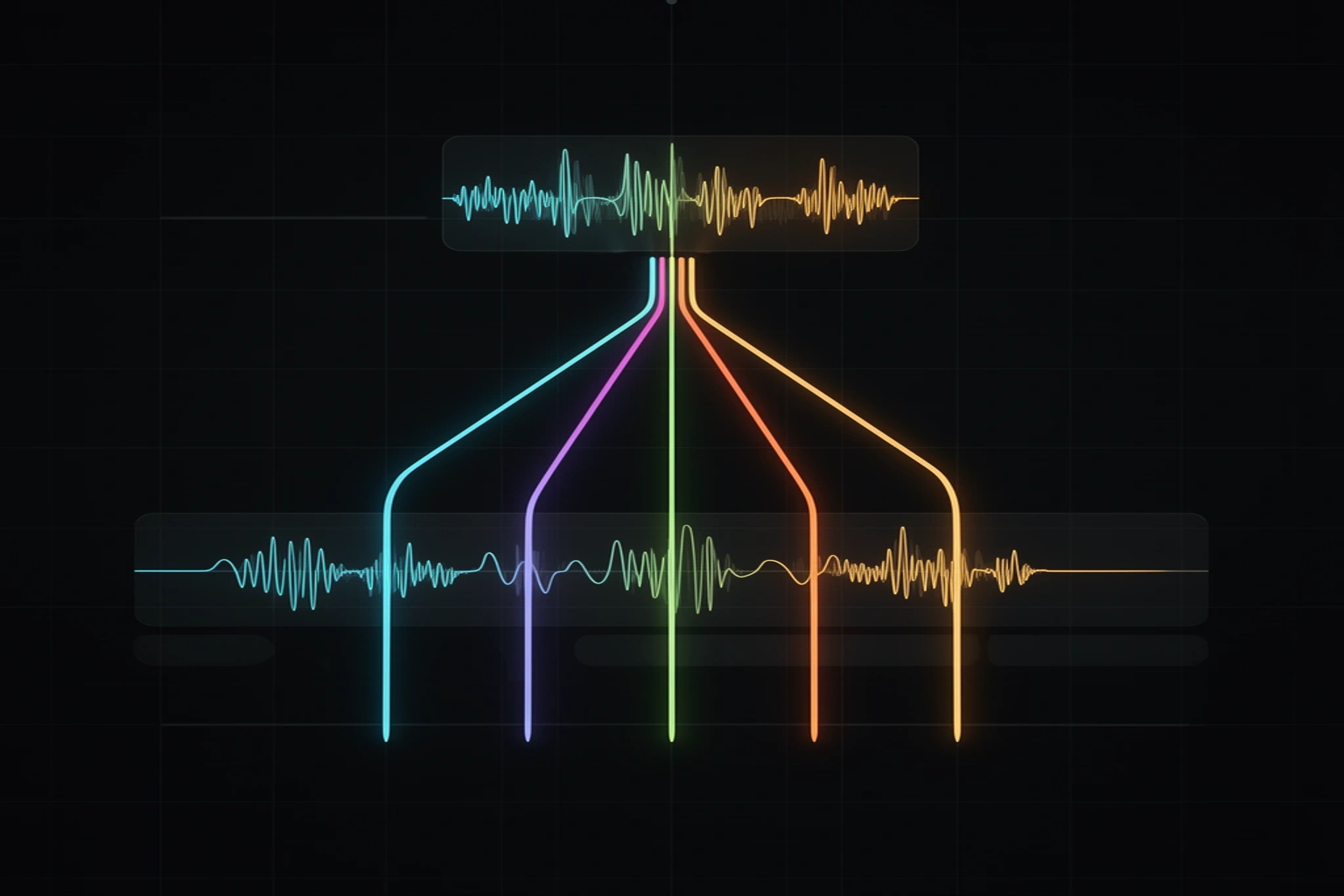
Stems are a song split into its parts, usually vocals, drums, bass and music, each as its own file. A DAW is a heavy tool for a light question such as how the song sounds without the vocal. The free stem mixer opens 2 to 8 stem files in your browser, gives each one mute, solo, gain and pan, and exports a single WAV mixdown.
Four controls cover most of a rough mix
Gain sets the hierarchy, because the loudest stem becomes the one a listener follows. Pan opens space between sounds that share a register, such as a guitar and a keyboard. Mute answers arrangement questions, and solo lets you inspect one stem at a time.
Changes apply live while the mix plays and render the same way in the export, so you do not have to bounce to hear a decision.
Why stems clip when you add them
A mixdown is the sum of its stems, and sums get louder. Two identical signals added together are 6.02 dB louder at the peak, and four are 12.04 dB louder, because the level in dB is 20 times the log of the number of signals.
Take four stems that each peak at −6 dBFS. If their peaks lined up, the sum could reach +6 dBFS, which is above the digital ceiling and would clip. Real stems rarely peak in the same instant, so the sum is usually lower, but you cannot know that without measuring. The table shows the worst case for equal, aligned stems.
| Equal stems added | Worst-case peak gain |
|---|---|
| 2 | +6.02 dB |
| 4 | +12.04 dB |
| 8 | +18.06 dB |
Leave headroom by pulling stem gains down before you look for loudness, and check the meters rather than trusting your ears at a loud volume.
Measuring loudness
The mixer shows a live level for each stem and measures integrated loudness in LUFS under the BS.1770 method, for every stem and for the master blend. The master figure is taken from the same offline render as the export, so the number matches the WAV you download.
The per-stem figures also show which stem dominates, which is often not the one you expect.
Rendering the versions you need
Variant renders produce mute-combination versions as separate WAVs in one ZIP, such as no vocal or drums only. Name the files plainly, because vocal and drum stems are recognized by filename.
You can also save two complete mixer states as A and B and switch between them while the mix plays. That comparison is faster than your ears can adapt, which is what makes it useful.
Where this goes wrong
Stems must start at the same point, because a stem exported with a different start offset will sit out of time with the rest. Stems that were bounced through a limiter or compressor on the master bus will not add back to the finished master. Stems made by separation software may not sum back exactly to the original either.
If you have a finished stereo file and no stems, check its stereo image with the mid/side tool first. The Song Chopper can cut a section out of a mix, and the hour looper will keep a blend playing while you decide.
SongStrip in the studio uses AI separation to make stems from a full song you upload there. Separation quality depends on the recording. Free usage has limits, so review the processing cost first.
The free-tools hub helps you choose the next check for your blend, from loudness measurement to stereo inspection and trimming, without opening a new production session.
Free tools for this job
Free browser tools that go with this post.
- Stem Mixer (songstrip.com) — Drop your stems, balance them with gain and pan, and export a clean mixdown.
- Mid/Side & L/R Splitter (songstrip.com) — Split any stereo file into mid, side, left, and right WAVs — hear each first.
- Song Chopper (songchop.com) — Split any track into transient-cut slices and download them as WAV or ZIP.
- Hour Looper (songrepeat.com) — Loop a song gaplessly for an hour — with a sleep timer and gentle fade-out.